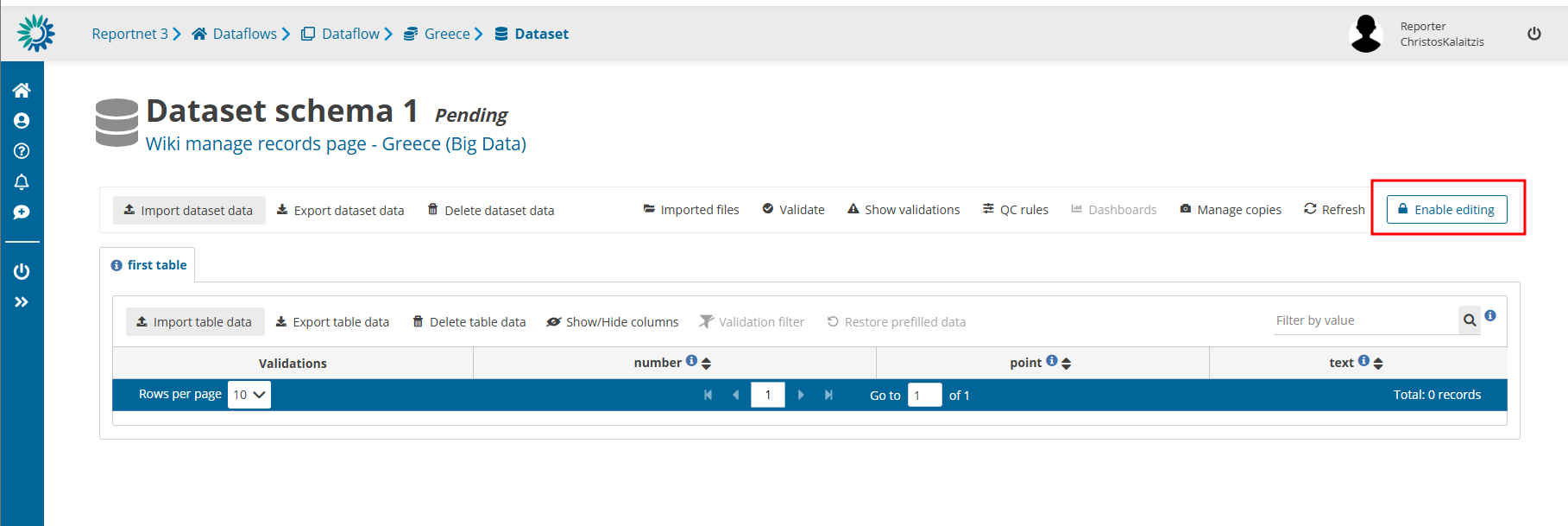
If it is big data dataflow, the actions below will only work after Enable editing is pressed.
After manual editing the data, Disable editing should be pressed.
Big data dataflows have a key difference: manual editing at data is not available if the button Enable editing at the top right corner is not pressed.
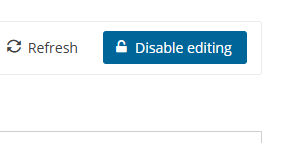
After it is pressed and the data have been converted to editable state, then top right corner will have the button of Disable editing instead of Enable editing. After applying any manual changes press the button Disable editing so all dataset actions can become available.
All standard actions apply after editing is enabled.
Button Enable editing may be unavailable (greyed out) for 3 reasons:
- As a design prerequisite, custodians should check a box of
Available for manual editing. Only tables with this flag will be available to manual editing. - Dataset releasing state: if dataset is currently releasing,
Enable editingis not available. - Data loading in progress: if there is any data loading (eg. import in progress),
Enable editingis not available.
If it is a Big Data dataflow, then all actions below require that you have Enable editing. If not, you will not be able to add/delete or edit any record.
Note: For Big Data dataflows, all actions below (add, edit, delete) require that you have Enable editing activated. Without it, no manual changes are possible.
How to add records through the web interface
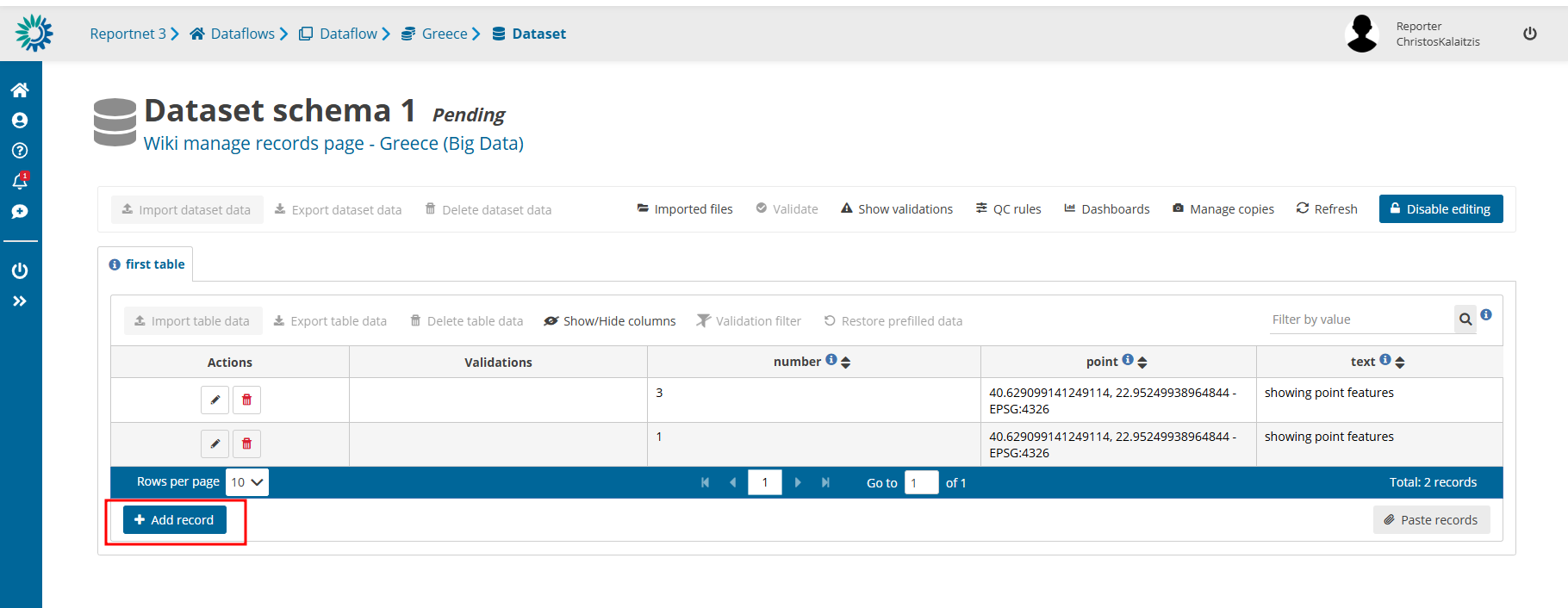
1. Add rows using the Add record button on the bottom left of the table.
2. In the dialog, tab between fields to enter data.
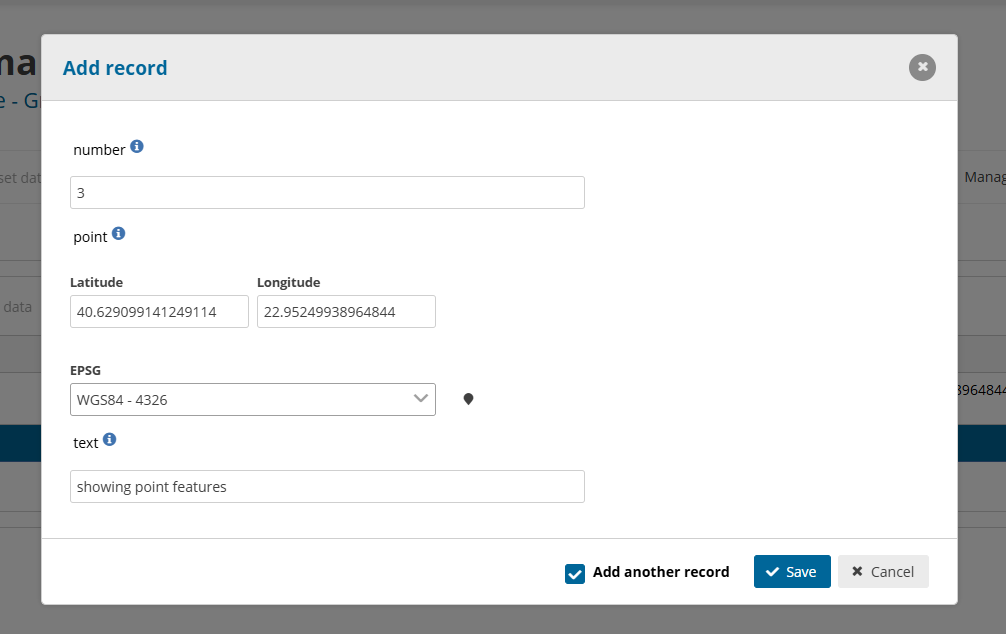
3. Enable the Add another record and the dialog will remain after ‘Save’ is clicked for the adding of the next record.
How to edit records through the web interface
- Either click directly on the field you wish to edit or click on the
editicon to the
left of the record to see the pop-up. - Note: Changes made online in Reportnet 3 are saved only within the platform. Your original file (for example, the CSV, Excel, or any type that is stored on your computer or organisation’s system) will not update automatically. To keep data consistent, export the updated data from Reportnet 3 or apply the same changes to your original file before reimporting.
- Note: Descriptive data can contain documents and references to documents that can’t be imported because it must be done manually
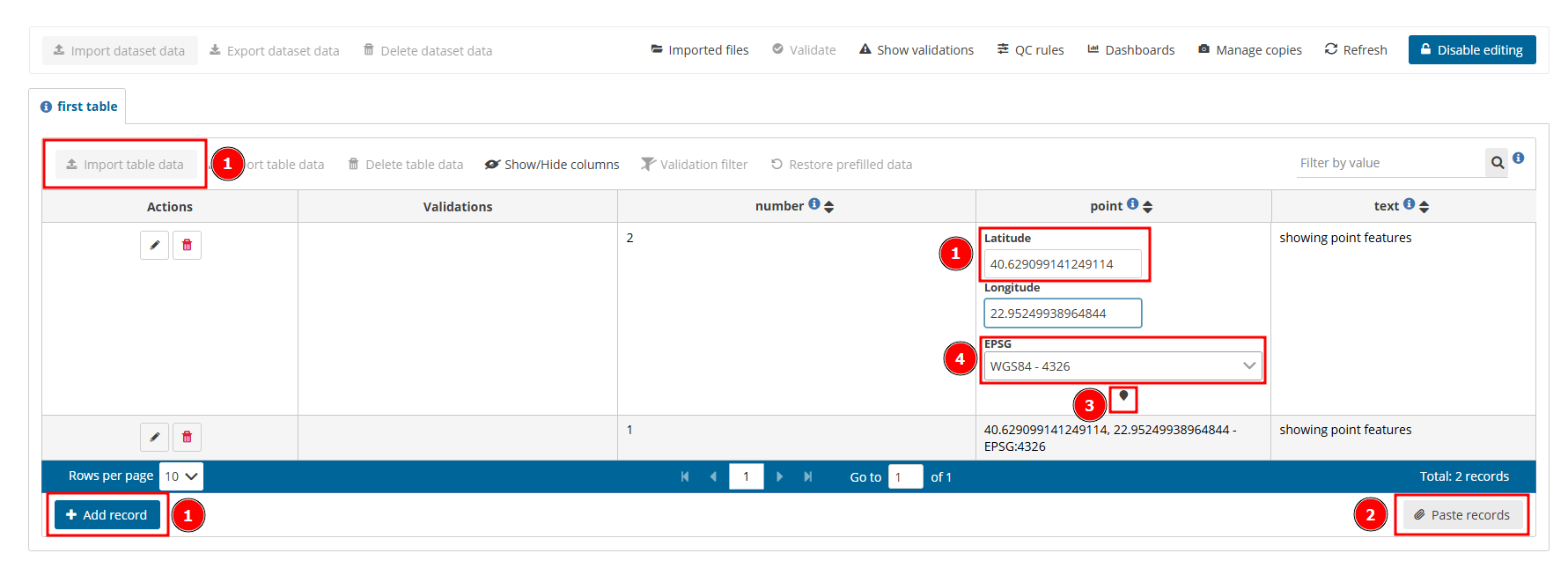
How to load data for a Point field
Data can be introduced by:
[1] – Typing directly in box, importing or with Add record.
[2] – Pasting records.
[3] – Selecting point in the map.
[4] – Different spatial reference and basemap layer can be chosen.
For any other spatial data there won’t be any visualization tool to be able to preview that spatial
transformations have worked correctly.
Note: Big Data dataflows require to have manual editing turned off to Import table data with a file. Press Disable editing and Import table data will be available again.
How to delete a row
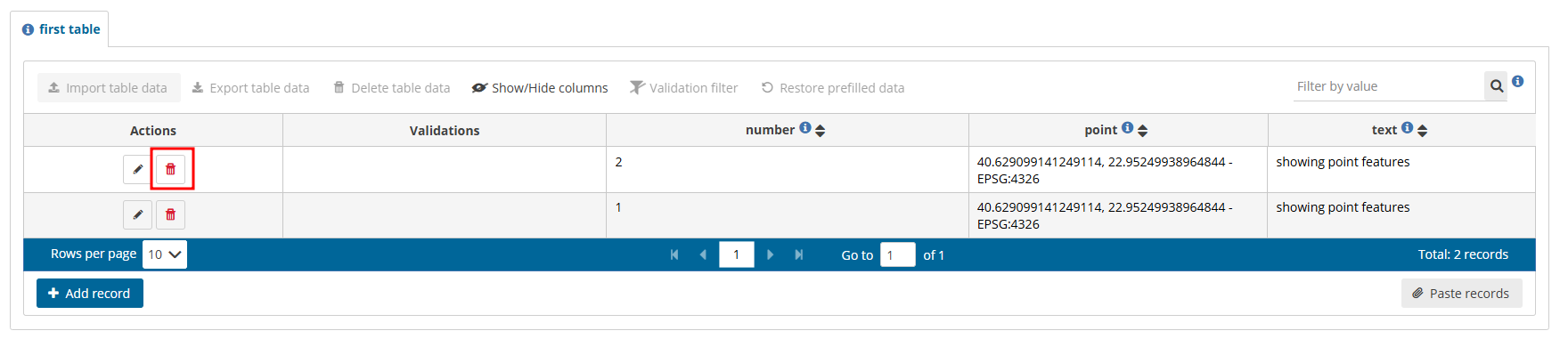
1. Click on the red trash-can icon in the first column.
2. You will be prompted to confirm the deletion – click yes to confirm.
Note: All associated QC checks both automatic and manually added are also deleted