
More than one person can be added as a reporter, but only the lead reporter has the permission to add additional contributors. This ensures that access management remains controlled and consistent within each dataflow.
- Go to the Dataflow page.
- Expand the left-hand menu by clicking the double arrow at the bottom left corner.
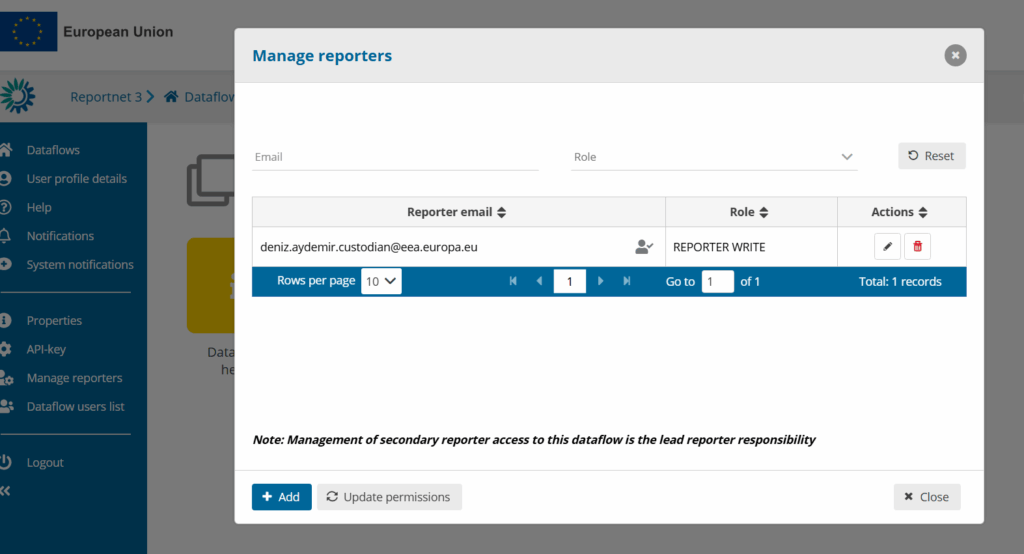
- Click on the “Manage reporters” button.
- A pop-up window will appear where you can add reporter accounts.
- In the Account field, enter the registered user’s email address and select an access level: either read or read-write.
- Click outside the input fields to confirm the entry.
- If the system cannot find the email as a registered user:
- A red box will appear around the email address.
- An icon will indicate that the user is not valid.
- You can click the Update the permissions button to check whether the user exists and has the necessary permissions.
- If the email is accepted:
- A new Account field will automatically appear.
- You can continue adding additional reporters.
- Note:
- Users with read access can only view the dataflow schema via Dataflow help → Dataset schemas.
- Reporters may see a different interface than the Lead Reporter (e.g., they will not see the Technical Feedback button).
- Once all reporters have been added, click Close to finish.